How to change the tone of your writing in Google Docs
How to make a paragraph more formal, more casual or friendlier in Google Docs, with example rewrites and a quick checklist.
The same message can land very differently depending on its tone. A note that's fine for your team can sound blunt to a client, and a formal email can feel cold to a friend. Here's how to change the tone of text in Google Docs, with examples.
What a tone change looks like
These are example rewrites of one quick message:
| Tone | Text |
|---|---|
| Original | hey, can u send me the numbers from last week asap, need them for the meeting |
| Professional | Could you please send me last week's figures before the meeting? Thank you. |
| Friendly | Hi! Would you mind sending over last week's numbers? I'd love to have them for the meeting. |
| Concise | Can you send last week's numbers before the meeting? |
Option 1: Use WriteMate's Tone tool
WriteMate is an AI writing add-on for Google Docs that works on any Google account, including free ones.
- Install WriteMate from the Google Workspace Marketplace, then open Extensions and choose WriteMate.
- Highlight the text you want to change.
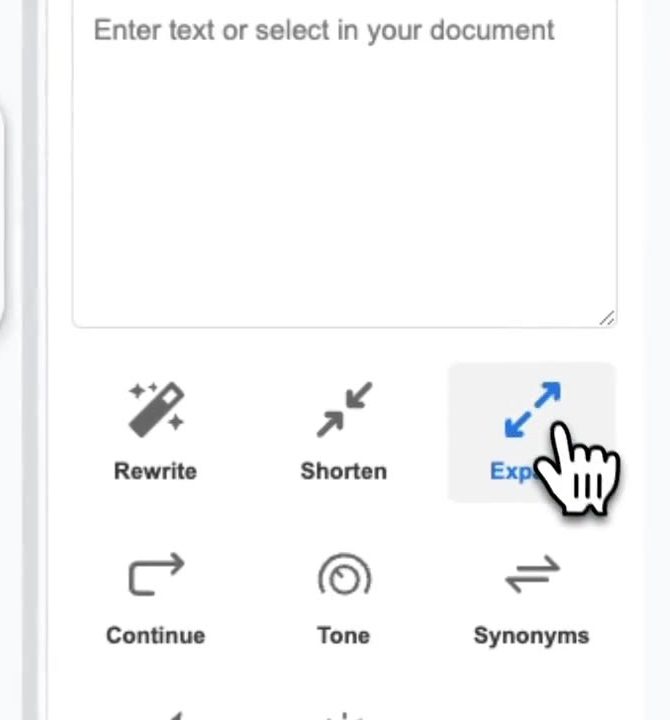
- Click Tone and choose the tone you want, such as professional, casual or friendly.
- Read the result. If it's not right, undo with Ctrl + Z (⌘ + Z on a Mac) and try a different tone.
Writing something new? Set the tone first
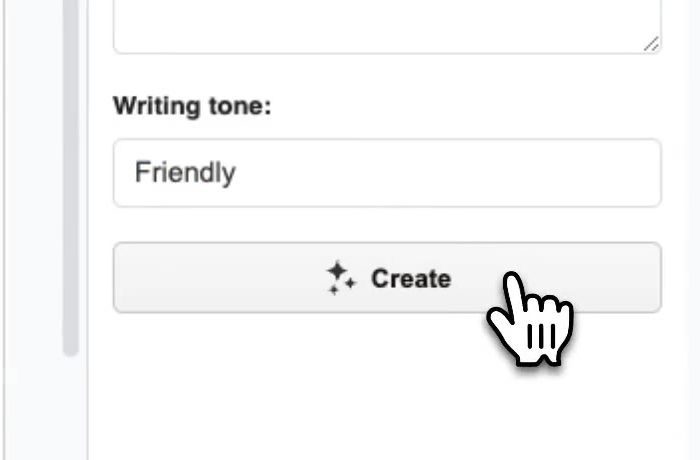
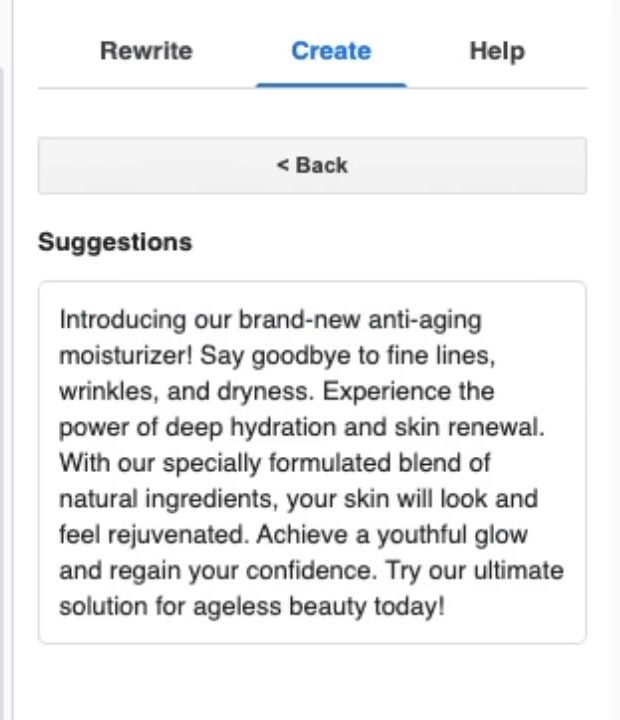
If you're starting from a blank page, use WriteMate's Create tab. Say what you're writing, list the main points, and type the tone you want in the Writing tone box before you click Create.
Option 2: Use Gemini (paid plans)
If your account includes Gemini in Docs, select the text and click Refine, then More. Choose More formal or More casual. For any other tone, type an instruction in the Gemini bar, such as "make this sound warmer". Gemini in Docs needs a paid Google AI or eligible Workspace plan; our Gemini vs WriteMate guide has the details.
Option 3: Change the tone by hand
These small changes make the biggest difference:
| To sound more… | Try this |
|---|---|
| Professional | Write words in full rather than using contractions. Drop slang and abbreviations like "asap". Ask politely ("Could you…") and end with a thank-you. |
| Friendly | Open with a greeting. Use contractions ("I'd", "we're") and talk to the reader as "you". A single exclamation mark can add warmth; more than one rarely helps. |
| Casual | Use shorter sentences and everyday words. It's fine to start with "So" or "Quick question". |
| Concise | Lead with the request. Cut filler like "just", "really" and "in order to". One idea per sentence. |
Match the tone to your reader
- Clients and managers: professional, clear and polite.
- Your team: friendly or casual, as long as the request is still clear.
- Customers with a problem: warm, but get to the answer quickly.
Whatever you choose, keep it consistent. A document that switches between formal and chatty is harder to read than one that commits to either.