Gemini in Google Docs vs WriteMate: which do you need?
Google has built Gemini into Docs, but not everyone can use it. Here's who gets it, what it costs, and how it compares with WriteMate, an AI writing add-on that works on any Google account.
Full disclosure: this guide is written by the team behind WriteMate. We've tried to be fair, and we'll say plainly when Gemini is the better choice.
Who can use Gemini in Google Docs?
Gemini's writing tools in Docs come with paid plans only. According to Google:
- Personal Google accounts need Google AI Pro ($19.99 a month) or Google AI Ultra (from $99.99 a month). The cheaper Google AI Plus plan ($4.99 a month) lists Gemini in Gmail, but not in Docs.
- Work and school accounts need an eligible Google Workspace edition. Google's latest Docs features are listed for Business Standard and Plus, Enterprise Standard and Plus, and Education Plus. Your admin also needs smart features turned on.
If you write in Docs with a free Gmail account, you won't see Gemini there. Prices are US prices at the time of writing.
What Gemini can do in Docs
If your plan includes it, you open Gemini from its icon on the bottom bar and type a prompt, such as "draft a project update". To edit existing text, select it and click Refine. Google's help page lists these options:
- Rephrase
- Shorten
- Under More: Elaborate, More formal, More casual, Bulletize and Summarize
Gemini can also draw on files from your Drive and Gmail when it writes, and on some plans it can match the style of another document. If you work across a lot of your own files, that's genuinely useful.
What WriteMate does
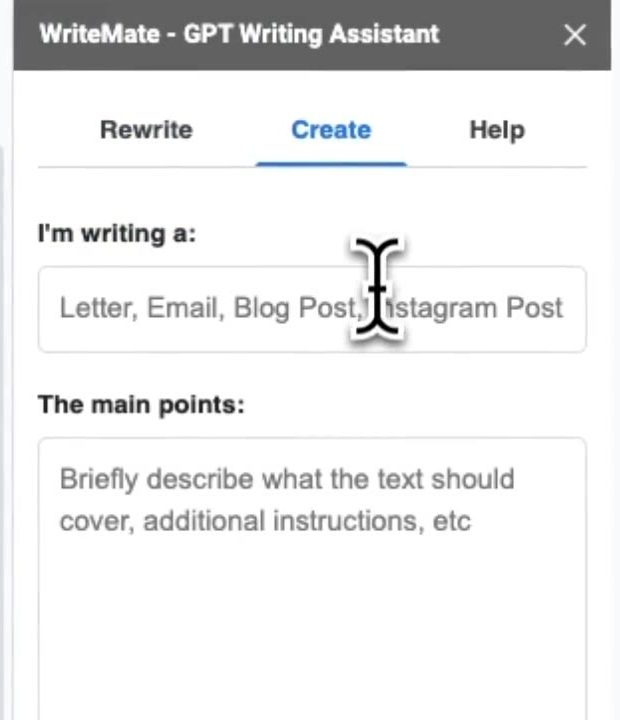
WriteMate is an add-on you install from the Google Workspace Marketplace. It opens as a sidebar from the Extensions menu and has two main parts.
Create writes a first draft. You say what you're writing, list the main points and pick a tone.
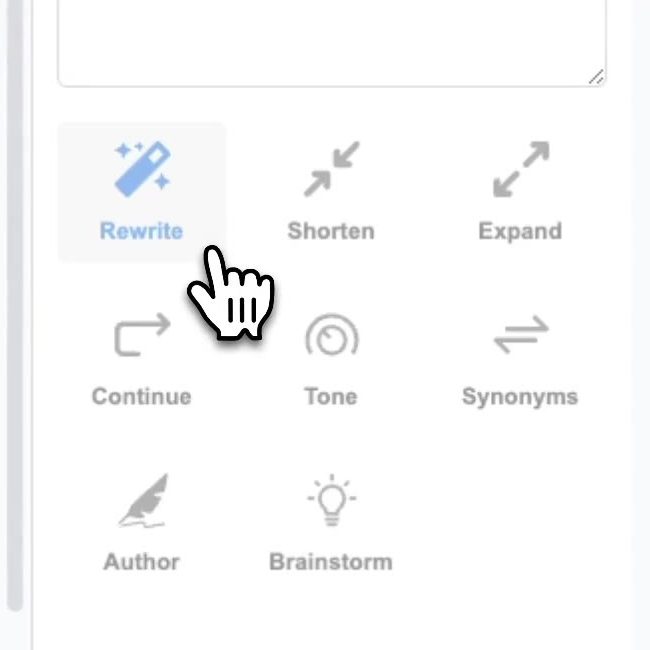
Rewrite works on text you highlight in your document, or text you paste into the sidebar. Its tools are Rewrite, Shorten, Expand, Continue, Tone, Synonyms, Author and Brainstorm.
WriteMate works on free personal Google accounts as well as Workspace accounts. On a work or school account, your admin may need to allow add-ons.
Side by side
| Gemini in Docs | WriteMate | |
|---|---|---|
| Free Google accounts | Not available | Yes |
| Cost | Included with Google AI Pro ($19.99/month), Ultra or eligible Workspace plans | Free with 10 credits a day, or $9/month for unlimited use |
| Draft from a prompt | Yes | Yes, with Create |
| Rephrase or rewrite | Yes | Yes |
| Shorten and expand | Yes | Yes |
| Change tone | More formal, More casual | Tone tool |
| Synonyms and brainstorming | By typing a prompt | One-click Synonyms and Brainstorm tools |
| Uses your Drive and Gmail files | Yes | No |
| Where it works | Docs, Gmail, Sheets and other Google apps | Google Docs |
Which should you choose?
Choose Gemini if you already pay for Google AI Pro or your work plan includes it. You're already paying for it, and pulling in your own files is something WriteMate doesn't do.
Choose WriteMate if you use a free Google account, if your Workspace plan doesn't include Gemini, or if you mostly want quick, one-click rewriting at a lower price. The free plan is enough to try every tool.
Or use both. WriteMate installs alongside Gemini, so you can keep the one-click tools even if you upgrade later.
How to try WriteMate
- Install WriteMate from the Google Workspace Marketplace and allow the permissions it asks for.
- Open any document, then go to Extensions and choose WriteMate.
- Highlight some text and pick a tool, or use Create to start a new draft.